
How to Allow Guest Users to Upload Files in Salesforce Safely
Salesforce can allow an unauthenticated Experience Cloud guest user to upload a file, but the feature is disabled by default and should be implemented as a security-sensitive workflow.
The risky version is easy to imagine: expose a public page, pass a Case ID in the URL, and let anyone upload directly to that record. That design can reveal identifiers, create unauthorized relationships, consume storage, and make it difficult to verify who submitted the file.
A safer design separates the public upload from the Salesforce record. The guest uploads a file with an opaque request value, and trusted server-side logic associates the file only after validating that request.
Quick answer: Enable Allow site guest users to upload files, use lightning-file-upload with a custom ContentVersion field whose API name ends in fileupload__c, pass an opaque one-time request value rather than a Case ID, and associate the resulting file with the correct record through reviewed server-side logic. Restrict file types and sizes, monitor abuse, and test the complete external-user path.
1. When should you allow guest file upload?
Guest upload can be appropriate when an unauthenticated person needs to provide supporting evidence without creating an account.
Examples include:
- A customer adds a screenshot to a support request.
- An applicant submits a document.
- A citizen sends a public-service form attachment.
- A partner provides a photo or PDF through a one-time link.
- A customer follows up on a Case without an Experience Cloud login.
Guest upload is not automatically the best design.
Consider authenticated access when the person will:
- Return to the portal
- View Case history
- Update records
- Manage previously uploaded files
- Submit sensitive information
Consider a specialized recording or collection tool when the requested evidence is video.
2. How Salesforce guest file upload works
For authenticated users, lightning-file-upload can use record-id to attach a file to a record the user can access.
Guest users are different.
Salesforce’s secure guest-user access model prevents direct record access in many configurations. The current component documentation provides a pattern based on a custom field on ContentVersion.
The process works like this:
- Create a custom text or picklist field on ContentVersion.
- Make the API name end with fileupload__c.
- Add file-field-name and file-field-value to lightning-file-upload.
- Store an association value on the uploaded ContentVersion.
- Use trusted logic to validate that value and relate the File to the intended record.
An example custom field API name is: Guest_Request_fileupload__c
For a guest user, a supplied record-id is ignored when the file-field-name and file-field-value pattern is used.
Salesforce also documents different return behavior for guest uploads. In applicable contexts, the component can return a ContentVersion ID rather than the standard ContentDocument ID.
To understand how uploaded Files connect to Cases and other Salesforce records, read our technical guide to the Salesforce Case object.
3. Step-by-step configuration
Step 1: define the business and security requirements
Before opening a public upload path, document:
- Who may upload
- Which file types are required
- The maximum acceptable file size
- Which Salesforce records may receive files
- How the submitter proves they are authorized
- How long an upload request remains valid
- How duplicate uploads are handled
- How abandoned uploads are removed
- Whether the customer may later view or delete the file
- Retention requirements
- Legal-hold requirements
- Data-residency requirements
- Malware controls
- Sensitive-data controls
- Abuse prevention
Do not let the component design determine the security model.
Start with the data, business requirements, and threat model.
Step 2: enable guest-user upload
In Salesforce Setup:
- Search for Salesforce Files.
- Open General Settings.
- Select Allow site guest users to upload files.
- Save the setting.
Salesforce blocks guest uploads by default.
Enabling the organization preference allows the capability, but it does not complete the implementation.
For an LWR Experience Cloud site, also review the setting required to use the File Upload Lightning Web Component for LWR sites.
Step 3: create the ContentVersion association field
Create a custom field on ContentVersion.
Use settings such as:
- Type: Text or Picklist
- Example label: Guest Upload Request
- Example API name: Guest_Request_fileupload__c
The API name must end with fileupload__c for the documented guest-upload pattern.
Store an opaque value in this field, such as:
- A high-entropy request token
- A request reference
- A hashed lookup value
Avoid storing a raw Salesforce Case ID on a public page when possible.
Step 4: create a secure upload request
When an agent asks a customer for a file, create a server-side upload-request record.
Useful fields include:
- Random request token or hashed token
- Target Case ID
- Allowed file types
- Maximum file count
- Expiration timestamp
- Request status
- Requesting agent
- Customer identifier
- Verification information
Example request statuses include:
- Active
- Used
- Expired
- Revoked
The public URL should contain the opaque token rather than the underlying Salesforce Case ID.
Example:
https://support.example.com/upload?request=RANDOM_ONE_TIME_VALUE
Use:
- Sufficient token entropy
- Short validity periods
- HTTPS
- Protection against token leakage
- Careful handling in logs and analytics
Step 5: configure lightning-file-upload
A simplified Lightning Web Component can pass the request value into the custom ContentVersion field.
<template>
    <lightning-file-upload
        label="Upload supporting evidence"
        name="guestUpload"
        accept={acceptedFormats}
        file-field-name="Guest_Request_fileupload__c"
        file-field-value={uploadRequestValue}
        onuploadfinished={handleUploadFinished}>
    </lightning-file-upload>
</template>
Important implementation points:
- Do not depend on record-id for guest association.
- Keep the request value opaque.
- Restrict the displayed accepted formats.
- Show clear guidance about prohibited sensitive information.
- Provide an alternative channel for customers who cannot upload.
The accept attribute filters the file picker, but it is not a complete server-side security control.
Guest upload is only one of several ways to add supporting evidence to Salesforce. Our guide to Salesforce file upload methods compares manual uploads, Flow, Lightning components, APIs, and bulk migration.
Step 6: validate and associate the file on the server
After the upload, trusted server-side logic should:
- Read the guest request value from the custom ContentVersion field.
- Resolve the corresponding upload-request record.
- Confirm that the request is active.
- Confirm that the request has not expired.
- Confirm that the request has not been revoked.
- Validate the permitted file count.
- Validate the file type.
- Validate the file size.
- Apply any other business or security rules.
- Associate the ContentDocument with the target Case through ContentDocumentLink.
- Set the appropriate sharing and visibility.
- Mark the request as used or update its remaining allowance.
- Remove or quarantine invalid files according to policy.
- Remove or quarantine abandoned uploads.
- Write an audit event without exposing the reusable token.
Do not trust a client-provided:
- Record ID
- File name
- MIME type
- Request value
- File extension
- Claimed customer identity
Validate every value on the server.
Salesforce’s guest-user development guidance emphasizes procedural access controls when operations run in system context.
Keep the public entry point narrow and have the design reviewed by an experienced Salesforce security practitioner.
This association uses Salesforce Files rather than the legacy Attachment object. See our Salesforce Attachment Object vs. Files guide for the underlying data model and migration considerations.
Step 7: configure file security controls
Review File Upload and Download Security in Salesforce Setup.
Salesforce provides controls for potentially risky file types, including an option to disallow HTML uploads as attachments or documents.
Also consider:
- Site-level file moderation
- Allowed extension lists
- Allowed type lists
- Maximum file size
- Maximum files per request
- Rate limiting
- Bot protection
- Malware scanning
- Data-loss prevention
- Redaction guidance
- Storage monitoring
- Expired-request cleanup
- Abandoned-file cleanup
If uploaded content can contain regulated or highly sensitive information, involve legal, privacy, and security teams before launch.
Step 8: test as a real guest user
Administrator testing is not enough.
Use an incognito browser and the live Experience Cloud guest profile.
Test:
- A valid upload
- An expired token
- A revoked token
- A missing token
- A reused token
- A modified URL
- An unsupported file type
- An oversized file
- Multiple files
- An interrupted connection
- A validation-rule failure
- A storage error
- An API error
- An attempt to view another customer’s record
- An attempt to upload to an arbitrary record
- An attempt to retrieve the uploaded file without authorization
Also verify what happens after the upload.
A successful progress bar does not prove that the file is:
- Correctly linked
- Visible to the right agents
- Hidden from unauthorized users
- Included in retention processes
- Included in deletion processes
- Available in the expected Case related list
4. A safer architecture for Case attachments
A robust guest-upload workflow usually separates the public upload from the final Salesforce record association.
The process looks like this:
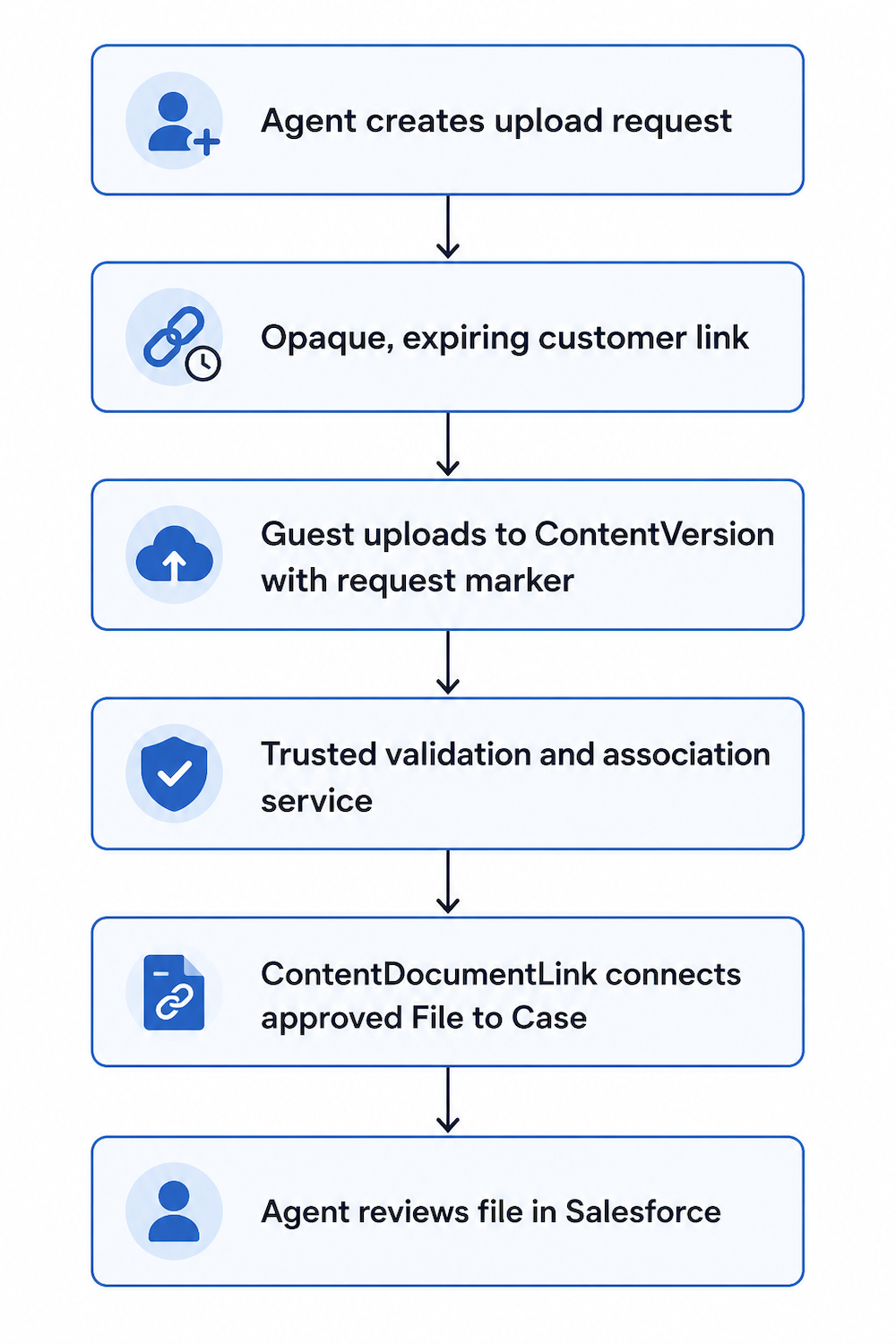
This architecture prevents the guest page from directly deciding which Salesforce record receives the file.
The public page accepts the upload.
Trusted server-side logic controls the final association.
File collection should support the wider Case process rather than operate as an isolated form. Our Salesforce Case Management guide explains how customer evidence, routing, investigation, escalation, and resolution fit together.
5. Guest upload security checklist
Before production, confirm that:
- Guest upload is required and approved.
- The public URL does not use a Case ID as the authorization mechanism.
- Request tokens are random.
- Request tokens expire.
- Request tokens can be revoked.
- Request tokens are single-use or limited-use.
- The upload component uses a ContentVersion field ending in fileupload__c.
- Server-side logic validates the request before record association.
- File type rules are enforced beyond the browser picker.
- File size rules are enforced beyond the browser picker.
- Customer and internal file visibility have been tested separately.
- Invalid uploads have a cleanup process.
- Abandoned uploads have a cleanup process.
- Storage consumption is monitored.
- Abuse rates are monitored.
- Failure rates are monitored.
- Logs do not contain reusable request secrets.
- The implementation has passed a Salesforce security review.
6. Guest file upload vs. a Videolink video request
If the customer needs to send a PDF, image, or document, a well-designed guest file-upload flow can make sense.
If the customer needs to show a problem, asking them to create and upload a video file introduces unnecessary steps.
Supporting files are often shared alongside the customer conversation. Our guide to Salesforce Case Comments explains when written updates are enough and when richer visual context is more useful.
The customer must:
- Find or install a recording tool.
- Record the screen.
- Save or export the recording.
- Locate the saved file.
- Return to the upload page.
- Upload the file.
- Wait for the agent to download or preview it.
A video request is designed around the task itself.
With Videolink, an agent can request a recording from the Salesforce Case workflow. The customer opens the link, records the screen or camera, and submits the result without needing:
- A Salesforce login
- A separate recording application
- A saved video file
- A scheduled meeting
- A manual file upload
This can be a better fit for:
- Bug reproduction
- User-interface problems
- Configuration walkthroughs
- Physical equipment issues
- Intermittent behavior
- Problems where sequence matters
- Problems where narration adds important context
The Salesforce Case remains the place where support work is managed.
The video platform handles:
- Recording
- Playback
- Captions
- Summaries
- Access
- Video-specific storage options
7. Common guest-upload mistakes
Treating the organization preference as the complete solution
The setting enables a capability.
It does not define:
- Record authorization
- Token security
- File validation
- Cleanup
- Visibility
- Abuse prevention
- Monitoring
Passing a Case ID in the URL and trusting it
A Salesforce record ID identifies a record.
It does not prove that the visitor is authorized to modify that record.
Use an opaque request value and server-side validation.
Granting broad guest access
Guest users should receive only the access required for the public function.
Avoid broad:
- Object permissions
- Record-sharing rules
- Apex class access
- Flow access
- System-context operations without procedural controls
Forgetting abandoned files
A file may upload successfully but never become associated with a valid request.
Define how these files are:
- Identified
- Quarantined
- Reviewed
- Deleted
Relying on the file extension
A file named evidence.pdf is not necessarily a valid or safe PDF.
Use layered controls appropriate to the risk level.
Making customers upload video as a generic file
For video-heavy support workflows, a recording request can be more usable and easier to govern than a public upload form accepting large video files.
Guest upload, video capture, telephony, automation, and knowledge tools all solve different parts of the service workflow. See our overview of Salesforce customer support software to compare the main categories.
8. Frequently asked questions
Can Salesforce guest users upload files?
Yes.
Salesforce provides an organization preference that allows site guest users to upload files.
The implementation also requires:
- An appropriate upload component
- Secure association logic
- Correct permissions
- File security controls
- External-user testing
Why does record-id fail for a guest user?
Salesforce’s secure guest-user model can prevent the guest from accessing the target record.
Salesforce documents a guest-upload pattern using file-field-name and file-field-value on a custom ContentVersion field instead of relying on direct record access.
What should the custom field be called?
The API name must end in fileupload__c.
An example is:
Guest_Request_fileupload__c
Use the field to store an opaque association value that trusted server-side logic can validate.
Should I give a guest user access to the Case?
Not merely to support a file upload.
Prefer an architecture that limits the guest to the narrow public action and associates the file through validated server-side logic.
Authenticated access may be more appropriate when the customer needs to:
- View the Case
- Update the Case
- Review Case history
- Manage uploaded files
- Return regularly
How do I stop unauthorized uploads?
Use several controls together:
- Expiring request tokens
- Least-privilege access
- Server-side validation
- File restrictions
- Rate limits
- Bot protection
- Monitoring
- Cleanup processes
- Security testing
No single control is sufficient.
Is guest upload the best way to collect a customer screen recording?
Not always.
A dedicated Videolink request lets the customer record and submit the issue directly. It avoids the extra steps of creating, saving, locating, and uploading a video file.
Sources and further reading
Salesforce Developers, lightning-file-upload:
Salesforce, Flow File Upload Component:
Salesforce, Files Best Practices for Guest Users:
Salesforce, File Upload and Download Security:
Salesforce Developers, Secure Sites for Authenticated and Guest Users:
Salesforce, Securely Share Experience Cloud Sites with Guest Users:

